Dell EMC Storage monitoring with Topologix
Infrastructure & Networking
One integration, four Dell EMC platforms picked at setup — PowerStore (PowerStore Manager REST), PowerMax (Unisphere for PowerMax), Unity / UnityXT (Unisphere Management), and PowerScale (OneFS Platform API) — normalized onto one storage card: health, capacity, and per-item usage and performance, where the monitored items are volumes, storage groups, LUNs, or quotas depending on the family.
Requirements
- A monitoring account per family: PowerStore Storage Operator or Monitor; PowerMax the Monitor role on Unisphere; Unity Storage Operator; PowerScale a role with ISI_PRIV_LOGIN_PAPI + ISI_PRIV_STATISTICS.
- HTTPS reach to the management URL — PowerStore and Unity on 443, Unisphere for PowerMax on 8443, OneFS on 8080 — from the server or a proxy agent; the Verify TLS certificate toggle covers self-signed appliances.
1 · Set up the integration
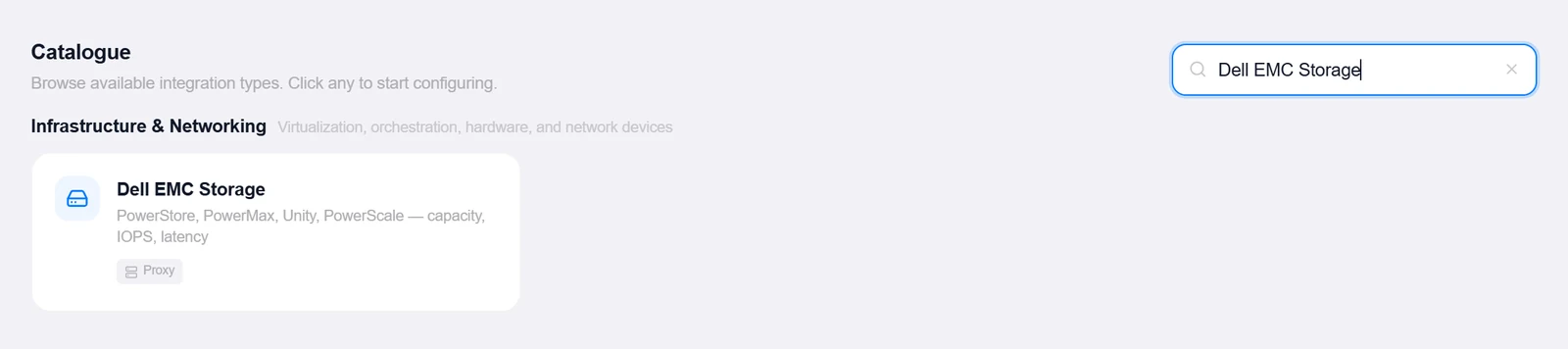
- Open the Integrations pageClick Integrations in the toolbar and pick Dell EMC Storage from the catalogue.
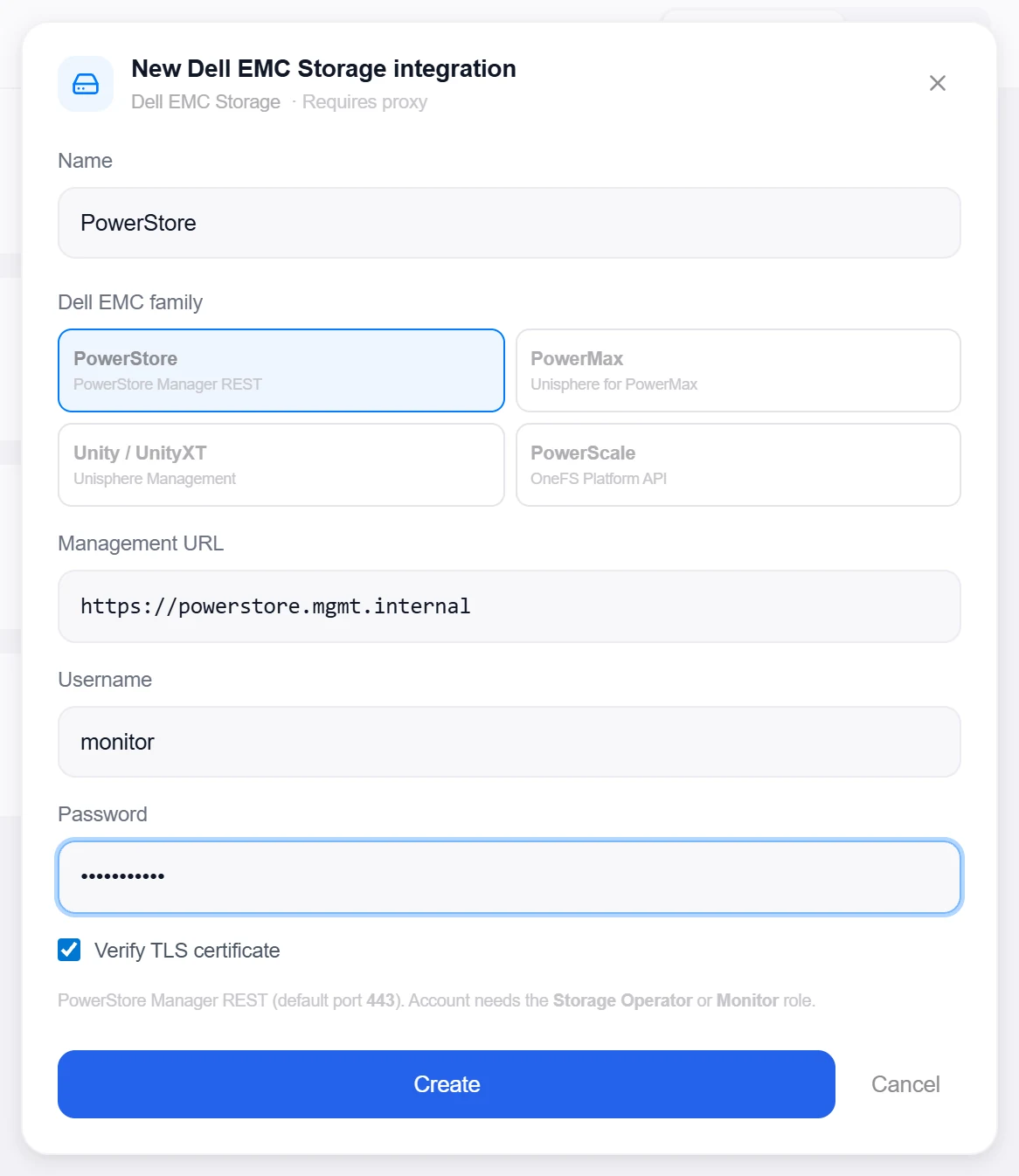
- Pick the Dell EMC familyFour tiles: PowerStore, PowerMax, Unity / UnityXT, PowerScale. The choice fixes the API and what the per-item rows mean.
- Enter the URL and credentialsThe Management URL (with the family’s port), Username, and Password.
- Create, then verifyClick Create, then reopen the integration and click Test — PowerStore, Unity, and PowerScale report the cluster name; PowerMax reports the Symmetrix id (the first system on the Unisphere is the one monitored).
Target on a private network? Route it through a proxy agent. Proxy agents run inside your network — behind NAT, on a management VLAN, in an air-gapped segment — and reach targets the Topologix server can't. The agent polls the server every 15 seconds for its assignments, runs the checks locally, and pushes results back every 5 seconds, so no inbound firewall rules are ever needed. Set a default proxy on the integration; every metric source can override it. If a proxy goes offline, its sources are marked stale within ~90 seconds and the last known values stay visible.
2 · Add it to a flow
- Select the storage nodeClick the node, open Metrics, then + Add and choose the Dell EMC integration.
- Pick the items to monitorThe picker lists what the family exposes: PowerStore volumes, PowerMax storage groups, Unity LUNs, PowerScale quotas. Optional Volume latency and Used % thresholds turn a breaching row red.
- SaveSet the interval and click Add Source. The card shows system health, a capacity bar, system-level performance where the family provides it, and a row per selected item with capacity and IO figures.
Live canvas screenshots for this integration require a real Dell EMC Storage environment, so this guide shows the configuration screens only — the flow steps above work exactly like every other integration.
Good to know
- Per-item depth varies by family: PowerStore adds IOPS and read/write latency (reported in µs, converted) via
/metrics/generate; PowerMax reads five-minute average HostIOs / response times / MB/s per storage group; Unity is capacity-only per LUN in v1; PowerScale reports cluster IOPS + disk throughput plus per-quota usage. - Unity authenticates with the EMC session-cookie + CSRF-token dance and re-logs-in transparently when the appliance expires the session; PowerStore and PowerMax use Basic auth per call.
- A PowerScale cluster with no quotas configured still populates the cluster-level card — quotas are only the per-item rows.
More Infrastructure & Networking integrations
See it on your own infrastructure
Book a demo and we will walk you through Topologix with your systems in mind: on our cloud, or self-hosted in your own network.